

iPad Locked Out? A Practical Guide to iPad Passcode Unlock, Activation Lock, and MDM Cases
Finding your iPad locked can be confusing, especially when you’re unsure why. Many users forget their passcode or buy a used device with a lock. You…

Finding your iPad locked can be confusing, especially when you’re unsure why. Many users forget their passcode or buy a used device with a lock. You might try to reset it, but still find a hidden security screen. This basically happens because iPads have different layers of protection to keep data.
Understanding these locks is the first step toward getting your tablet back. You should learn how to handle a passcode, Activation Lock, or MDM issue. Moreover, using a specialized tool like Dr.Fone iPad Unlock can simplify this recovery process. Thus, this guide will help you choose the right path to fix your locked device.
Part 1. Passcode vs. Activation Lock vs. MDM: Understanding the Three Main Barriers
A passcode lock is a local code used to enter your tablet's screen. Aside from that, Activation Lock connects your device to an Apple ID for extra security layers. Moreover, MDM locks are different because they allow an organization to control its iPad. Thus, you can learn how to unlock iPad without passcode by checking these types.
Each security barrier serves a unique purpose for protecting your personal user data. You must choose the right fix based on which lock you currently face. The table below compares these three common iPad barriers to help you decide:
|
Feature |
Passcode Lock |
Activation Lock |
MDM (Mobile Device Management) |
|
Primary Purpose |
Screen access security |
Theft protection through Find My |
Corporate or school device management |
|
Where It Appears |
On the lock screen after the device is turned on or awakened |
During initial setup after a reset or restore |
During setup or within settings after enrollment |
|
Required Info |
Device passcode, such as a 4-digit or 6-digit PIN |
Apple ID and password linked to Find My |
Organization credentials or MDM authorization |
|
Effect of Restore |
Removes the passcode but keeps user data unless erased |
Remains linked to the Apple ID even after restore |
The management profile can remain after restoration if enrolled through automated device enrollment |
Part 2. How to Identify Your Lock Type: Spotting Activation Lock and MDM Signs
Identifying the specific lock on your iPad is the first step today. A passcode lock simply shows a number pad or a locked message. You will see a prompt for a PIN or a biometric scan. Apart from that, if your screen asks for an Apple ID, you have Activation Lock. This screen appears after you try to reset a used iPad device.
You might need an iCloud activation lock removal service for this situation. On the other hand, MDM locks look very different because they mention a company or school. You will see a message saying “Supervised” or “Managed by.” Sometimes the iPad asks for a specific username and a corporate password. These signs help you determine if the lock is local or server.
Part 3. Official Apple Restore Methods: What They Fix & Where They Fall Short
Standard Apple restores can help you wipe a local passcode today. However, these basic steps often fail to remove higher security locks. You might struggle with how to remove MDM from iPad devices. A simple factory reset will not disconnect your Apple ID account. These security layers exist to keep your personal data completely safe. You should check the table below to see what restores fix:
|
Lock Type |
Official Method |
Expected Result |
Technical Reality |
|
Passcode |
Recovery Mode Restore |
The device is wiped clean. |
Works correctly, but deletes all local data. |
|
Activation Lock |
iCloud.com Remove from Account |
Removes the device from the Apple ID. |
Activation Lock is removed, and the iPad can be set up again. |
|
MDM Profile |
Settings “Remove Management” |
The management profile is removed locally. |
Usually requires the device passcode or administrator credentials. |
|
System Stuck |
iTunes/Finder Update |
Reinstalls the iPadOS without erasing data. |
Higher-level locks, such as MDM or Activation Lock, will remain active. |
Part 4. When to Use an iPad Unlock Tool for Lockouts
Official methods can sometimes be too slow or complex for your daily needs. You might want a faster way to handle your tablet lockout today. A specialized tool like Dr.Fone iPad unlock provides a very clear guided path. So, explore the following situations where using a professional tool is a smart choice:
- Forgotten Codes: You have completely forgotten the complex passcode for your own personal tablet. The guided software will help you reset the device and regain full access.
- Secondhand Buys: You purchased a used iPad that still has a lock from before. These tools can help you clear the old settings to start fresh today.
- Broken Screens: Your iPad screen is cracked, and you cannot type your private passcode. A digital tool allows you to bypass the hardware issues using your computer.
- Time Savings: Official Apple support might take several days to verify your identity fully. You can save a lot of time by using a direct and dedicated software solution.
- MDM Bypass: You need to remove a corporate profile that is restricting your iPad usage. The tool provides a way to bypass these limits without the admin password.
Part 5. Using Dr.Fone as a Guided Recovery Path for Supported iPad Lock Cases
When official methods fail or take too long, guided unlocking becomes essential. That’s where Dr.Fone – Screen Unlock (iOS) provides a complete and reliable recovery path. It supports the latest iOS 26 and works with all iPad models, even newer ones. This robust software allows users to unlock an iPad without a passcode in a few simple steps. You can even remove all types of screen locks, including Touch ID or Face ID issues, within 5 minutes.
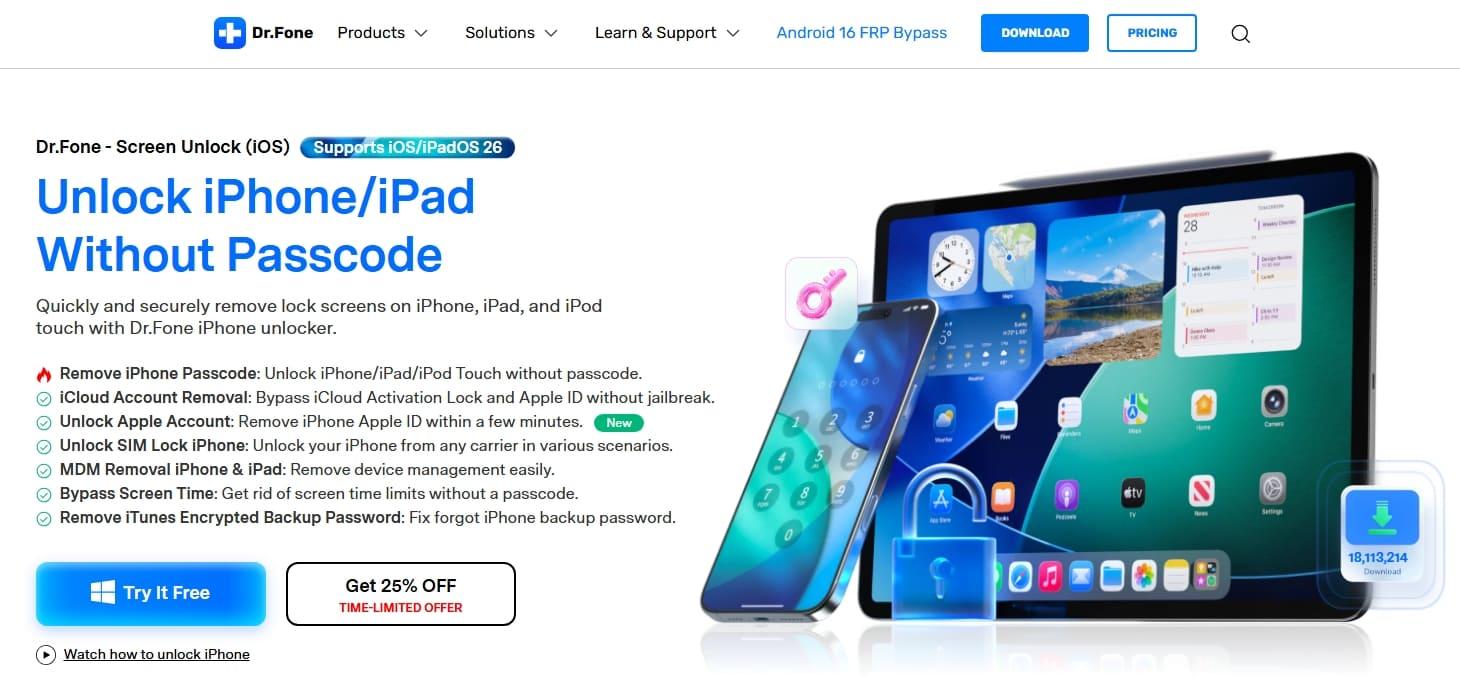
If your device displays an Apple ID request, it can handle iCloud activation lock removal. The program bypasses Activation Lock without jailbreak while keeping the process fully secure. Users can also remove MDM profiles restricting apps, settings, or connectivity options quickly. The process works even when the iPad shows “MDM charging only” messages during setup. Dr.Fone’s local unlock technology ensures your privacy while avoiding any risky modifications.
Key Features
- Jailbreak Free: The bypass process works without needing to jailbreak your mobile device.
- Disabled Device: It restores access when your iPad is disabled after many incorrect tries.
- High Success: Dr.Fone's advanced technology offers a very high success rate for all models.
Comprehensive Guide to Remove iPad Passcode Lock Through Dr.Fone
Dr.Fone provides a safe, step-by-step process to help regain quick access. The following steps show how to use the software for a quick recovery:
Step 1. Establish the iPad Link to Dr.Fone
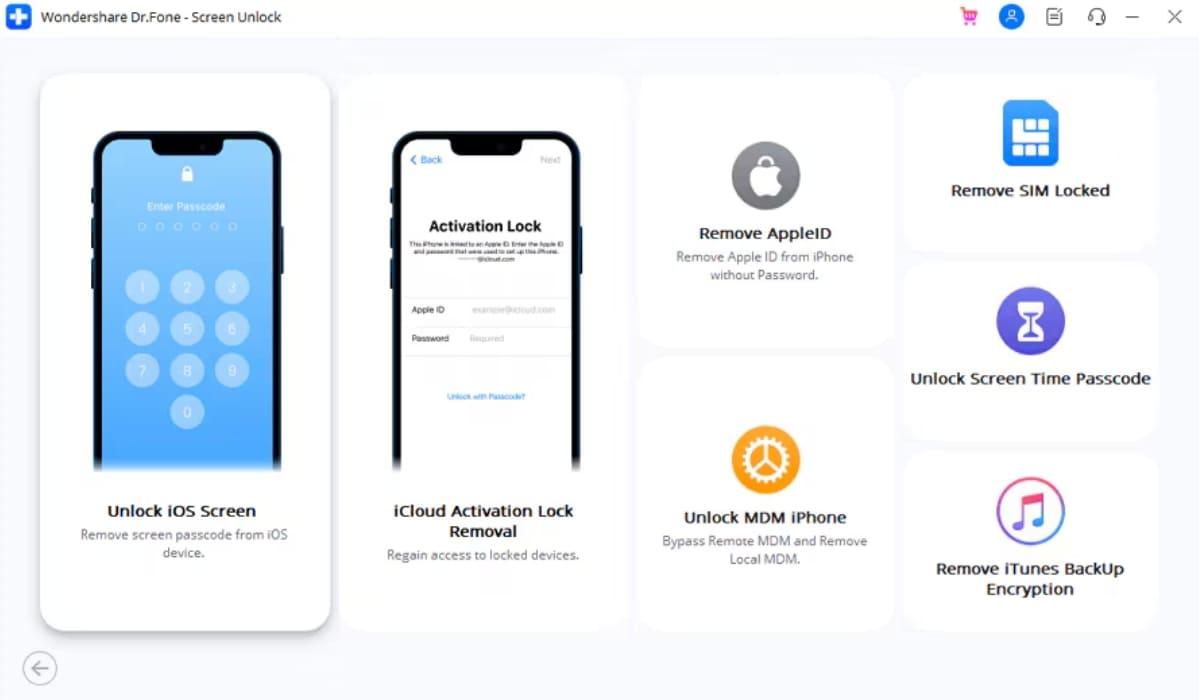
Head to the “Screen Unlock” feature from the “Toolbox” section. Identify “iOS” as your specific device type, then tether your iPad to your computer using a USB cable. From the menu, select “Unlock iOS Screen” to initialize the task.
Step 2. Verify Device Hardware for Unlocking
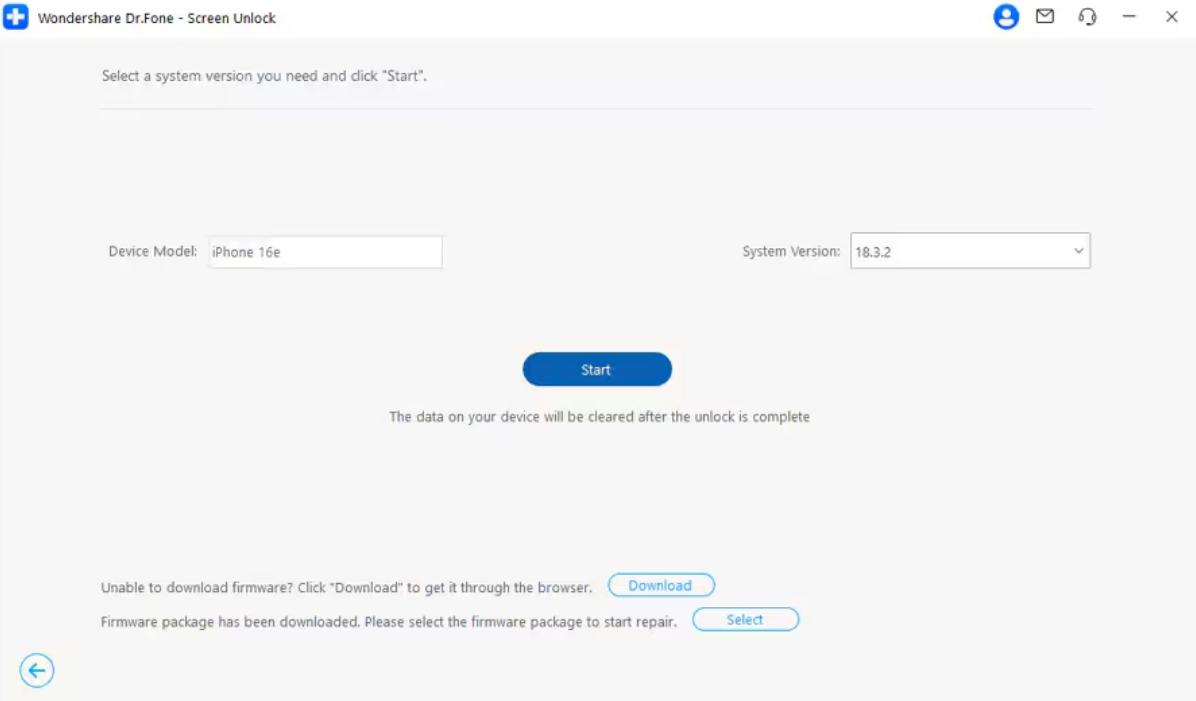
Follow the visual walkthrough to put your iPad into Recovery Mode. This allows the software to accurately detect your device. Once the tool displays your model and iOS version, double-check that and hit “Start.”
Step 3. Prepare and Execute Screen Unlocking
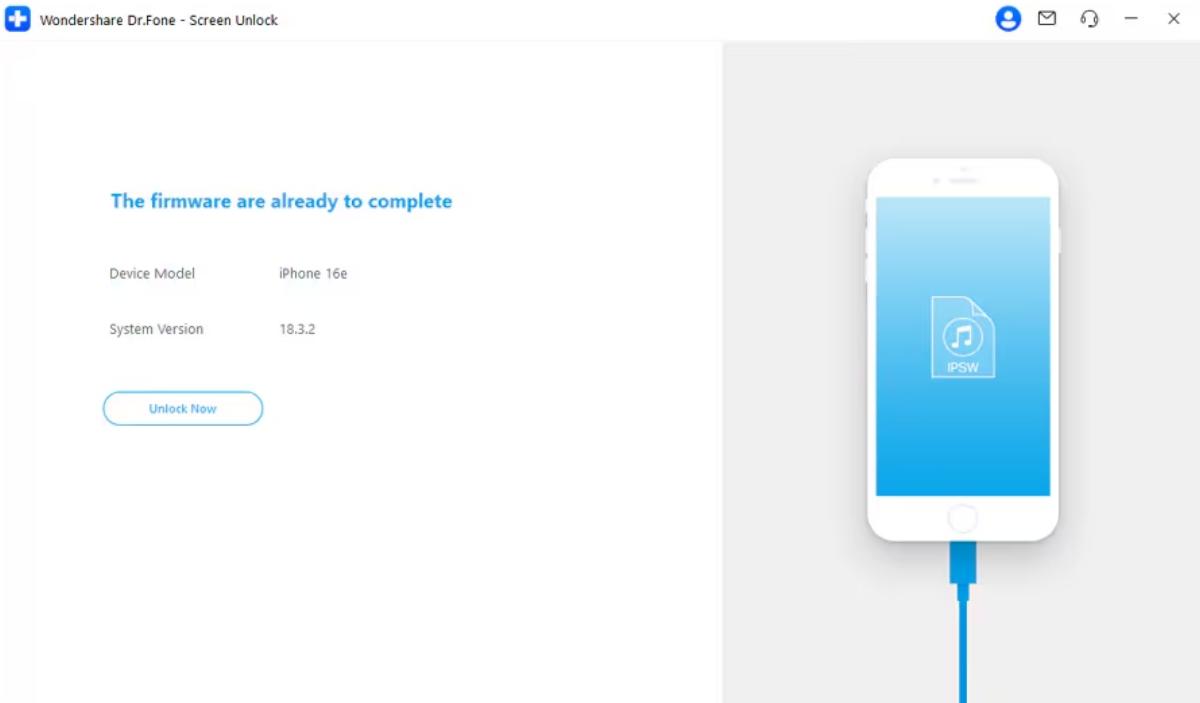
The system will now fetch the required firmware package tailored for your device. Once the "Ready" signal appears, click “Unlock Now” to begin the final process of wiping the screen lock.
Detailed Guide to Remove iCloud Activation Lock via Dr.Fone
iCloud activation lock removal through Dr.Fone offers a trusted and secure way forward. The program ensures you regain access without needing the previous owner’s credentials. Follow the next steps to efficiently remove the Activation Lock using Dr.Fone software:
Step 1. Navigate to the iCloud Module
Start by opening the “Toolbox” on your dashboard and selecting the “Screen Unlock” utility. Here, choose “iOS” as the platform and opt for “iCloud Activation Lock Removal.”
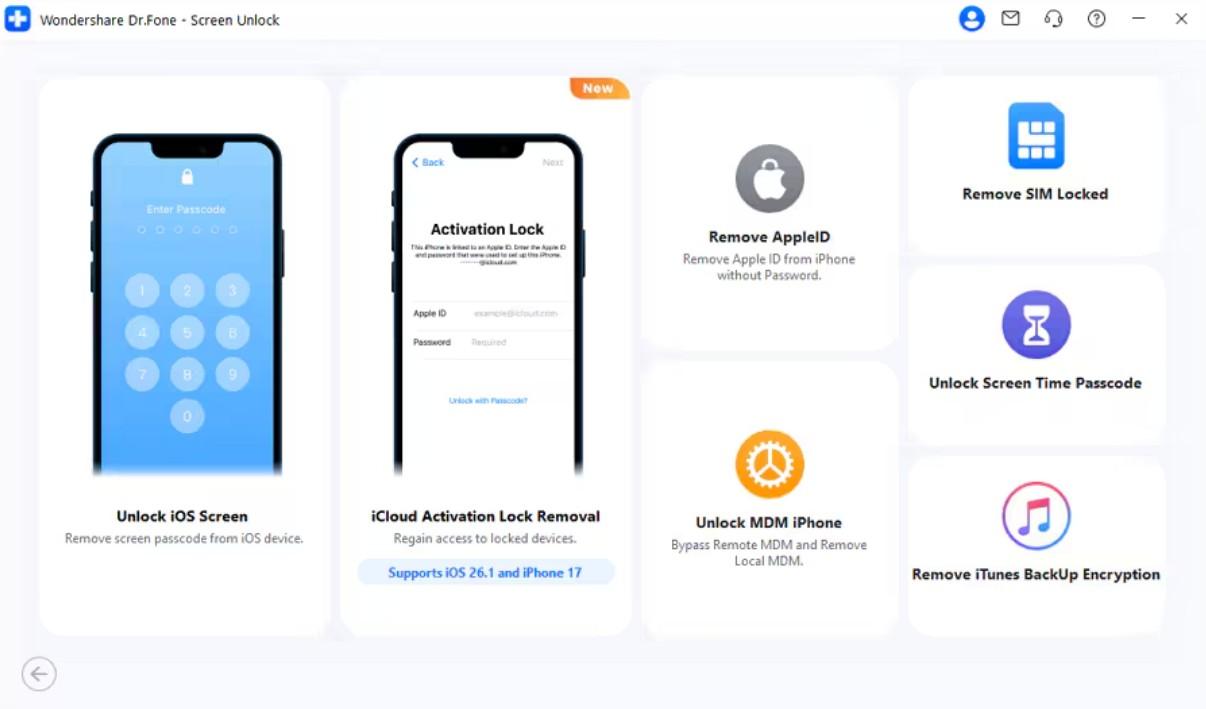
Step 2. Connect and Verify Your iPad Info
Connect your iPad to your computer using a Lightning cable and hit “Start.” The software will run a quick diagnostic to identify your device and display its details. Give this info a quick once-over to ensure accuracy, then click “Unlock Now.”
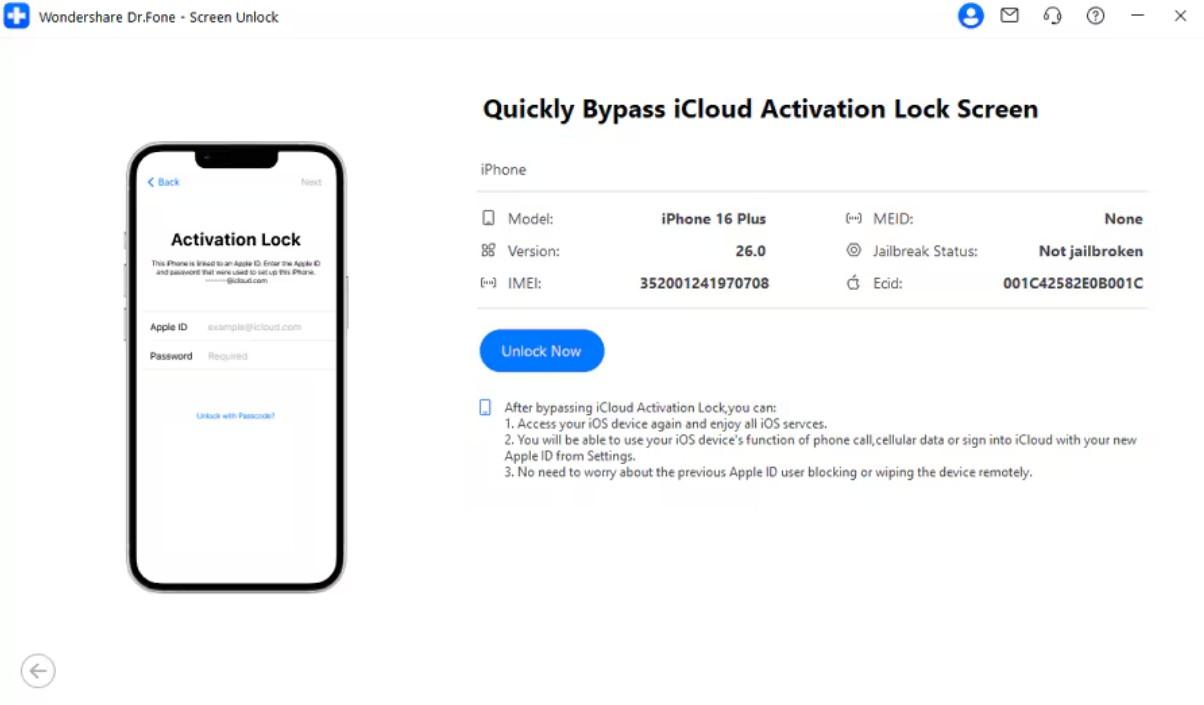
Step 3. Bypass the iPad iCloud Activation Lock
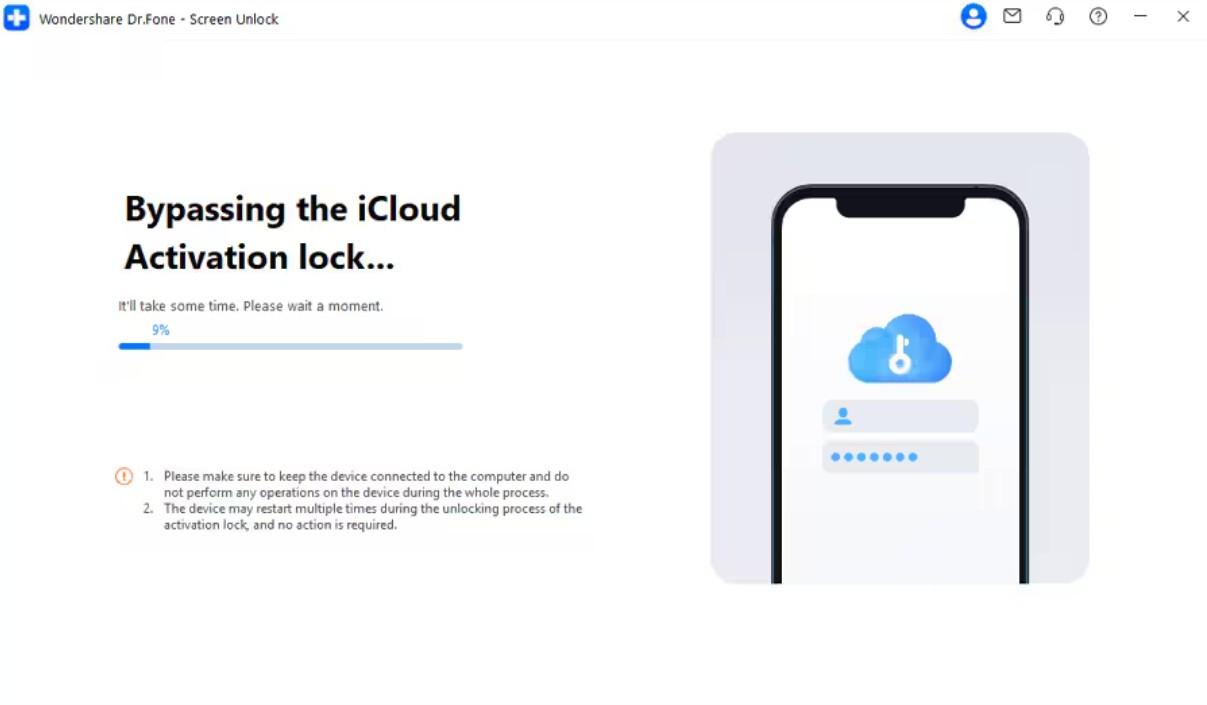
Check the box for “I Have Read and Agree to the Agreement” and select “Got it.” The tool will then fetch and install the necessary drivers. Once done, the bypass will initiate, and you can track the live progress on the screen.
Step-by-Step Guide to Bypass MDM Lock Using the Dr.Fone Program
Apart from the above, removing a corporate management profile is also easy with this guided tool. It helps bypass supervision profiles without needing admin credentials. So, go through the given guide to find out how to remove MDM from iPad without hassle:
Step 1. Access the Program for MDM Removal
Open the “Toolbox” tab and navigate directly to the “Screen Unlock” module for “iOS.” After that, select “Unlock MDM iPhone” to prepare the software for the removal sequence.
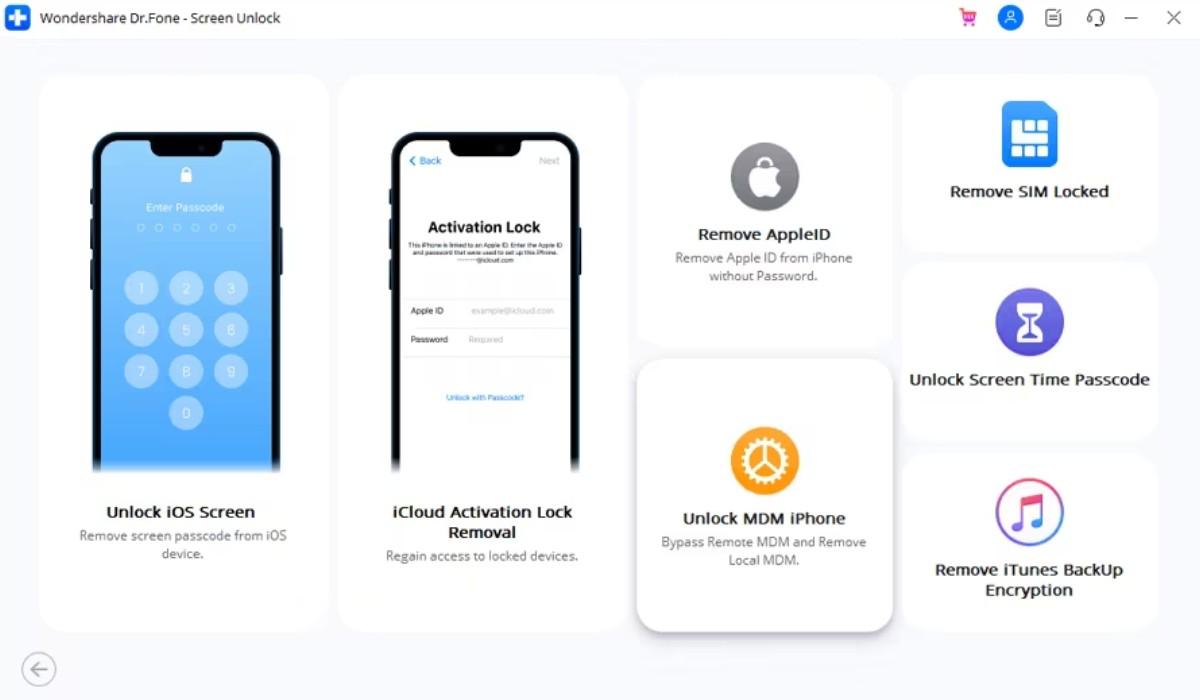
Step 2. Configure the MDM Bypass
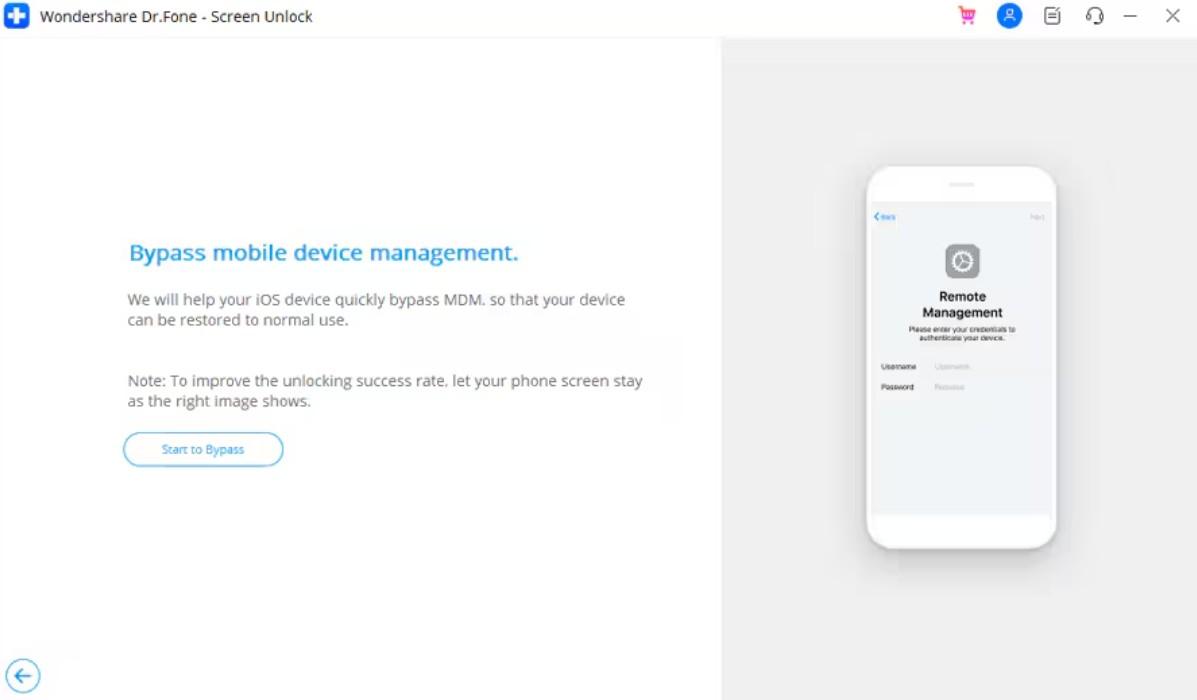
Locate the “Bypass MDM” option to focus on the Remote Management profile. Tap “Get Started,” then confirm the action by clicking “Start to Bypass.” This command triggers the utility to begin dismantling the existing MDM lock layers.
Step 3. Finalize the MDM Removal
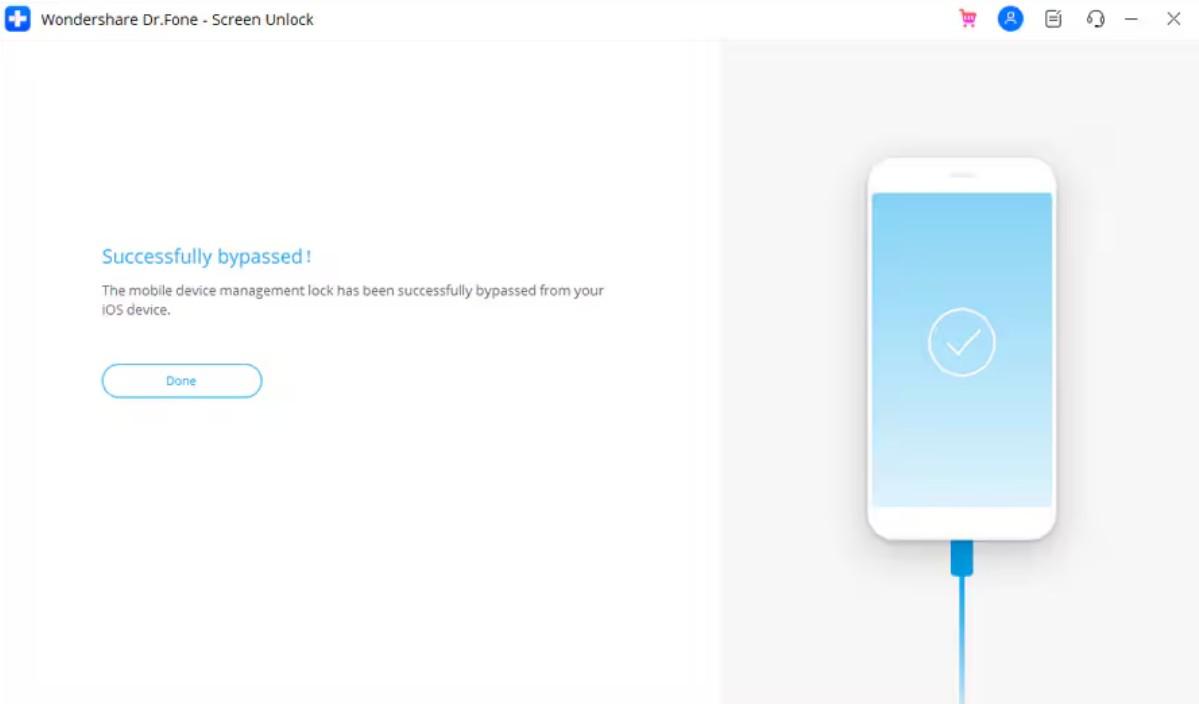
Disable the “Find My iPad” feature when prompted to ensure the process completes. Once toggled off, the software will execute the final stage of the bypass.
Conclusion
To summarize, understanding your iPad’s exact lock type helps you choose safer recovery methods. Whether it’s a passcode or a cloud barrier, every case differs uniquely. So, using the correct solution saves time and important personal or professional data. In addition, selecting a trusted unlocking tool reduces the risk of errors during the recovery process. For fast, guided recovery without technical complexity, Dr.Fone iPad Unlock is highly recommended.